Pochi Docs
Skills are reusable instruction sets that extend Pochi's capabilities. They allow you to standardize workflows, provide domain-specific knowledge, or integrate with external tools.
Install Skills
You can discover and install skills from the community skills.sh registry using the CLI:
npx skills add <skill-source> --agent pochi

# Example: Install a specific skill from a collection
npx skills add vercel-labs/agent-skills --skill pr-review --agent pochi
This command automatically detects Pochi and installs the skill to .pochi/skills in your project. Alternatively, you can place skills in .agents/skills/ to share them with other AI coding agents.
Create Skills
To create a custom skill, place a SKILL.md file in a subdirectory of .pochi/skills/.
File path: .pochi/skills/<skill-name>/SKILL.md
Example
Here is an example SKILL.md for creating GitHub issues:
---
name: create-issue
description: Help create a github issue given the request
---

# Github Issue Creator

1. Search the codebase for relevant context.
2. Create an issue using `gh issue create`.
3. Append the footer: "🤖 Generated with [Pochi](https://getpochi.com)".
4. Assign the issue to the appropriate project.

IMPORTANT: Only create the issue, do not attempt to fix it.
Frontmatter
Each skill must start with YAML frontmatter containing at least a name and description.
| Field | Description |
|---|---|
name | Unique identifier (lowercase, hyphens allowed). |
description | Brief explanation of what the skill does. |
Discovery
Pochi automatically discovers skills in the following locations (higher priority listed first):
- Project:
.pochi/skills/(shared with your team, Pochi-specific) - Project:
.agents/skills/(shared with your team, cross-agent standard) - Global:
~/.pochi/skills/(available across all projects, Pochi-specific) - Global:
~/.agents/skills/(available across all projects, cross-agent standard)
If two skills share the same name, the one from the higher-priority location takes precedence.
Cross-Agent Compatibility
The .agents/ directory is an emerging standard shared by multiple AI coding agents (e.g., Claude Code, Codex). By placing skills in .agents/skills/, you can define shared workflows once and have them available across different agents without duplicating files.
Using Skills
Viewing Available Skills
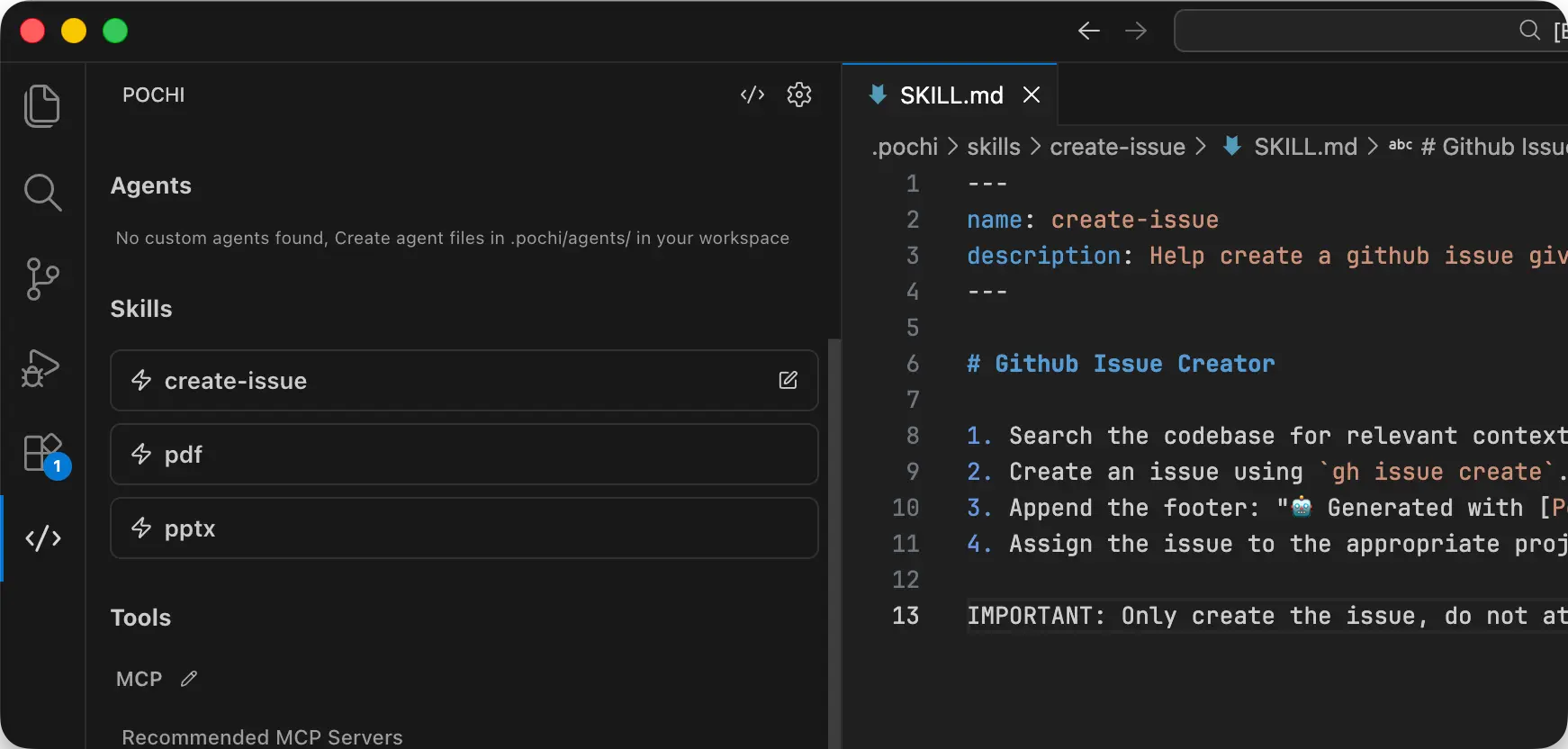
You can view all available skills in your settings panel. This gives you an overview of all installed skills. You can also click the edit button on the right side of each skill to open and modify the corresponding skill file.
Activating Skills
There are two ways to activate skills in Pochi:
Automatic Discovery
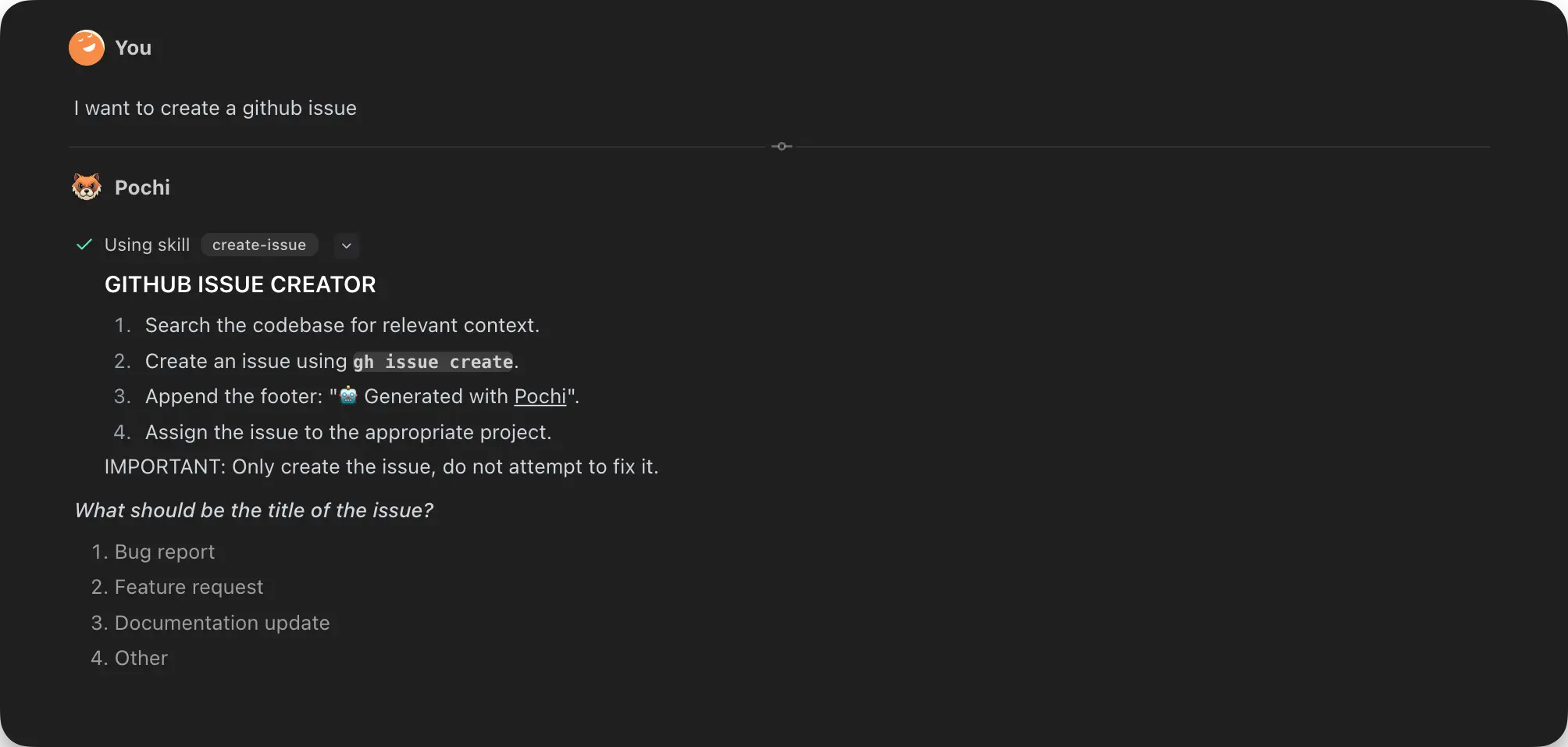
Pochi can automatically discover and invoke relevant skills based on your prompt. When you describe what you want to do, Pochi will analyze your request and suggest appropriate skills to use.
Slash Commands
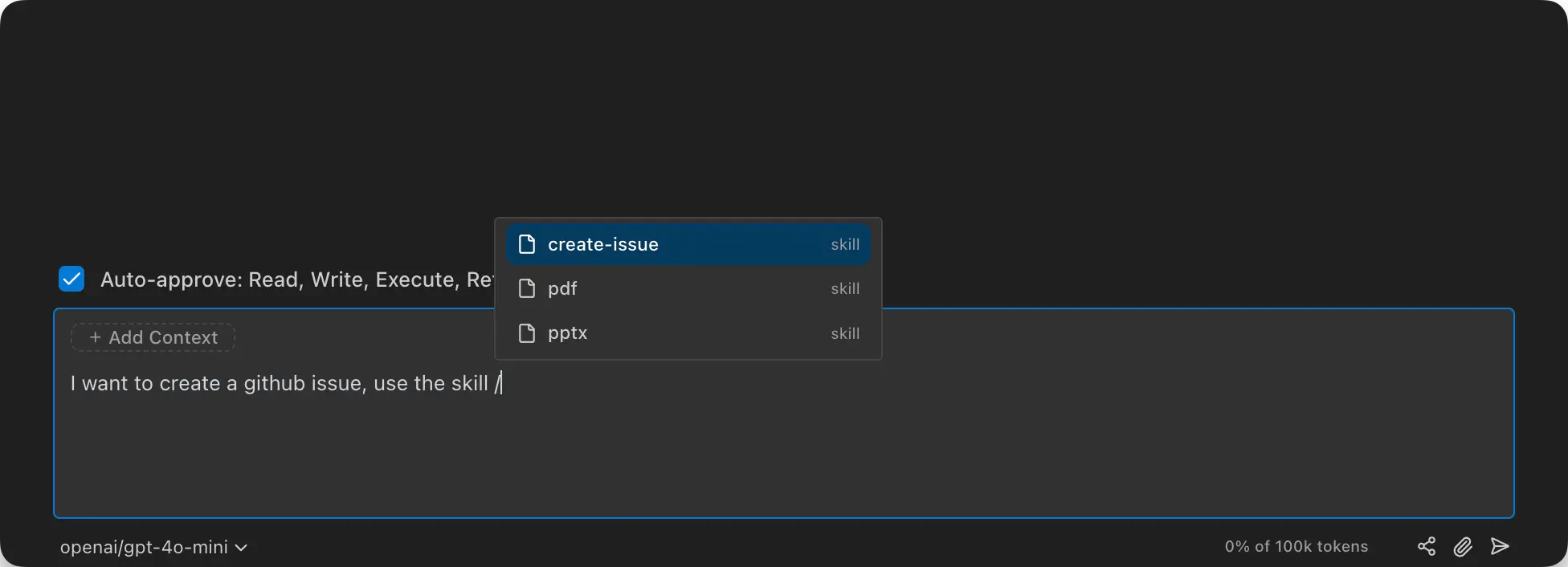
You can explicitly specify which skill to use by typing a slash command followed by the skill name. This gives you direct control over which skill gets activated.